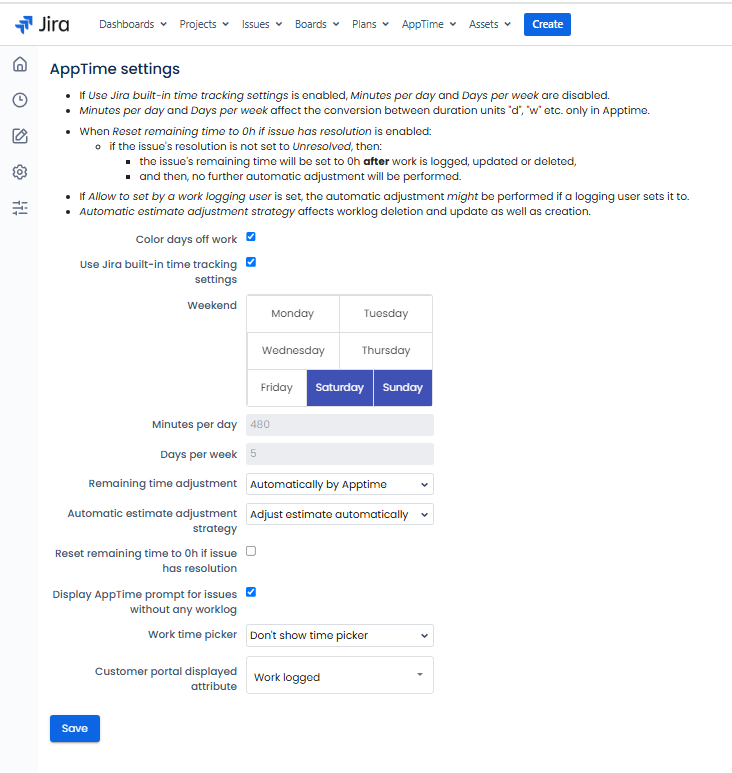
AppTime settings let you set and customize the tracking time rules within your Jira instance.
You can utilise Jira's built-in settings or add a custom configuration to match your business operations.
To edit the time tracking settings:
Log in as a user with the 'Jira Administrators' global permission.
- Select AppTime → Timesheets in Jira's top navigation bar.
- From the sidebar menu, go to Settings.
Adjust the time tracking according to your needs.
Click "Save" to confirm.
What can be configured:
Color days off work - determine if days off will be highlighted by colour in your Timesheet.
Use Jira built-in time tracking settings - if checked Jira's standard time tracking settings will be applied e.g. the number of working hours per day is 8 and the number of working days per week is 5.
Weekend - highlight the team's scheduled days off.
Minutes per day & Days per week - specify the number of working days per week and the number of working minutes per day. This applies when Jira built-in time tracking settings are disabled.
Remaining time adjustment - define whether the Remaining time will be adjusted automatically or by the work logging user.
Automatic estimate adjustment strategy - define whether the Estimated time will be adjusted automatically.
Reset remaining time to 0h if issue has resolution - if checked Remaining time will be set to 0h once the issue has resolution set.
Display AppTime prompt for issues without any worklog - if checked AppTime tab will be displayed in all issues including issues without any worklogs.
Work time picker - allows to add a time picker to the logging work screen. Additionally, you can select the option to add a time picker with 15-minute intervals.
Customer portal displayed attribute - allows to set the attribute which will be displayed in the Timesheets view on the Customer Portal. 'Work logged' is a default option, but you can select any other Custom attribute of the type 'Duration'.