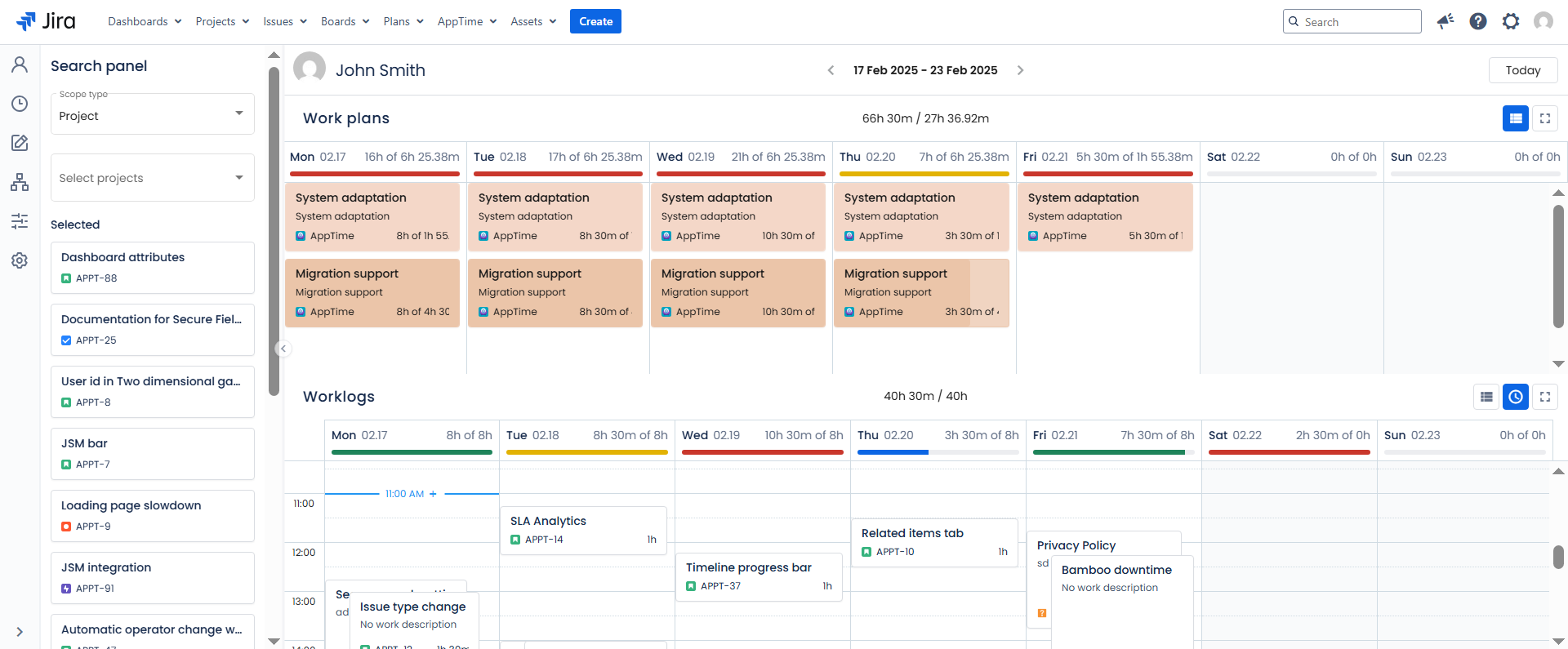
My Work page is your central hub for tracking and managing all your scheduled and logged work.
It provides a clear, organised view of Work Plans and Worklog entries, allowing users to track progress and maintain accurate worklogs efficiently.
My Work page enables users to:
- View their workload distribution across different work items/projects
- Identify unlogged time or incomplete tasks
- Review logged hours in the context of scheduled work
The page combines a calendar grid view of planned work & Jira work items with entered worklogs.
To open My Work page:
- Click on AppTime in Jira's top navigation bar.
- Select My Work tab from the drop-down menu.
You can search across multiple work scopes and drag and drop items into the Work Plans or Worklogs section to quickly schedule or log work.
Available scope types are: Issue, Project, Sprint, Epic, Fix version and Organisation.
Date range
By default, the page displays a one-week calendar view, from Monday to Sunday.
You can navigate between weeks using the arrow controls - click the left arrow to view the previous week or the right arrow to move to the next week.
Work Plans display
The Work Plans for the current week are displayed in the upper panel of My Work view. Users can review existing Work plans or add new ones in two ways:
- Drag and drop a desired scope of work (issue, project, etc.) from the left-hand panel into the calendar
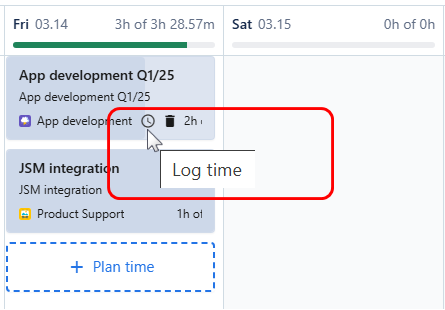
- Hover over a specific day in the calendar and click “+ Plan time” to create a new entry
This allows for quick and intuitive planning directly within the weekly calendar view.
Each Work plan displayed in the calendar is interactive - clicking on it opens a detailed view, where users can edit the plan or add a time worklog.
To display only the Work Plans, click the "Full screen"  button located in the upper-right corner of the page. This expands the calendar to display only the Work plans view.
To exit full-screen mode and return to the standard layout, simply click the "Full screen" button again.
Worklogs display
The Worklogs panel is located below the Work Plans section. It provides a clear overview of all time logged during the current week.
Users can easily add new worklogs or modify existing ones directly from the calendar view:
- Drag and drop a relevant work item (Jira issue) from the left-hand panel directly into the calendar, or
- Hover over a specific day in the calendar and click “+ Log time” to manually add a worklog for the selected day.
Clicking on a worklog opens Edit worklog screen where users can edit and adjust the worklog details.
Click the “Full screen” button in the upper-right corner of the section to display just the Worklogs panel. To return to the default split view, click “Full screen” button again.
To display worklogs with time-specific details, click the "Time view"  button located in the upper-right corner of the Worklogs section. This divides each day in the calendar into hourly time blocks.
Time view mode allows users to log time at specific hours throughout the day. To return to the standard calendar layout, click the "Time view" button again.