Work Plans serve as a blueprint for tasks. In other words, Plans are buckets for worklogs, but a worklog isn't tied to a specific plan.
Select AppTime → Work Plans in the Jira's top navigation bar.
You'll be brought to the Work Plans menu with four sections:
- Predefined - New plan view: allows viewing all the Plans for the current user.
- My saved plan views section contains Work Plan views saved by the current user.
- Shared with me refers to the Plan views shared with the current user.
- My team plan views tab contains Plan views for the Teams to which the current user is added.
Create a Work Plan
- Navigate to the top panel menu → Apptime → Work Plans → New plan view.
- Click "Add work plan" button at the top right-hand corner of the page.
- Owner: current user is the owner of the Work Plan by default. Click Change Owner to set another user to be a Plan Owner.
- Period: define a time period for the Work Plan.
- Name: fill in the Plan name.
- Select whether the Plan will be based on the amount of work Per day or Total time → fill in the time duration.
- Include weekends: check this box if you want to count weekends into the Plan.
- Track plan by: allows to set how the Plan progress will be tracked. Currently, you can select Worklog or None.
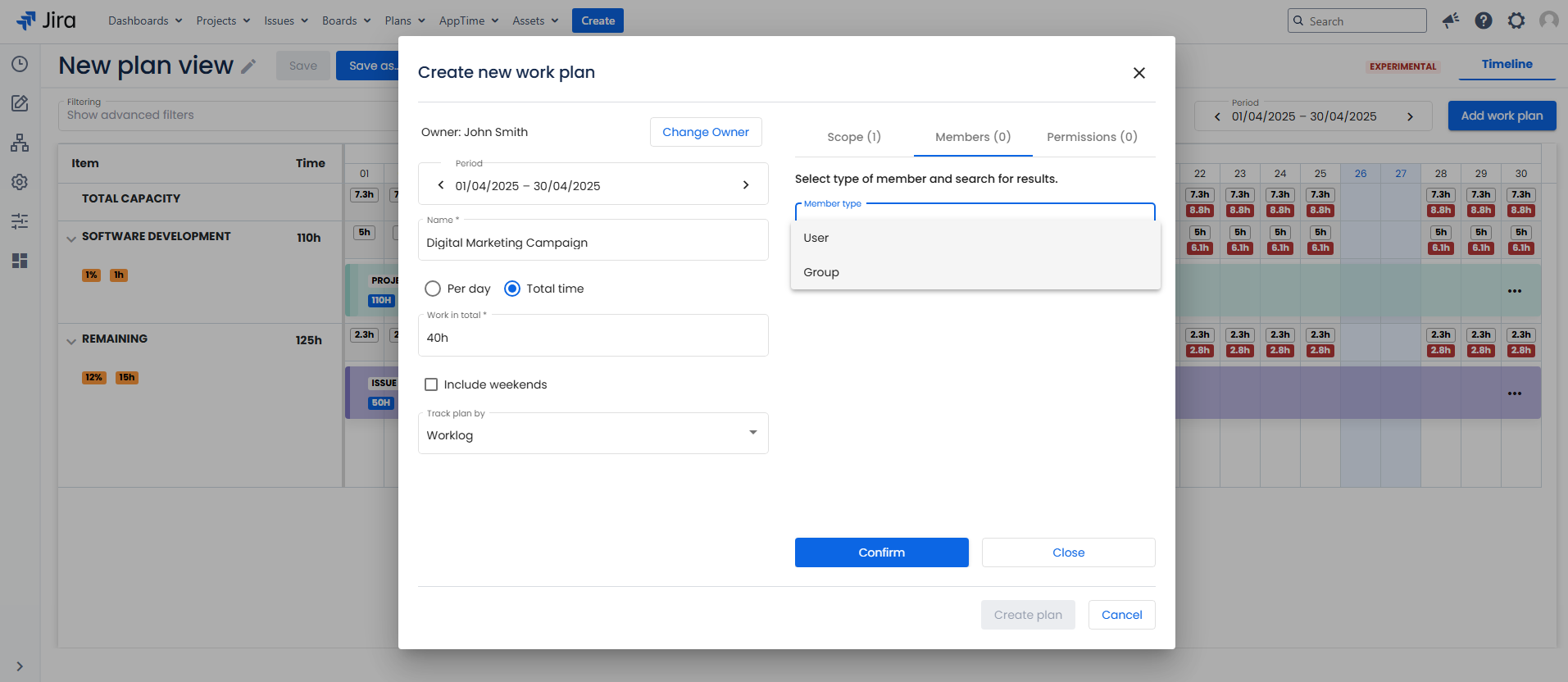
- Scope - allows to define the scope of the Work Plan: Issue, Project, Sprint, Epic, Fix Version, Organization. Click Add element to select a desired scope. Multiple scopes are allowed.
- Members - users or groups for whom the current Work Plan will be applicable.
- Permissions - define who can view the Work Plan. The Plan access can be restricted to Private; open only for Plan members; or open to everyone (Public).
Work Plans List
You can view all your created Work Plans by going to the top menu → Apptime → Work Plans → New plan view.
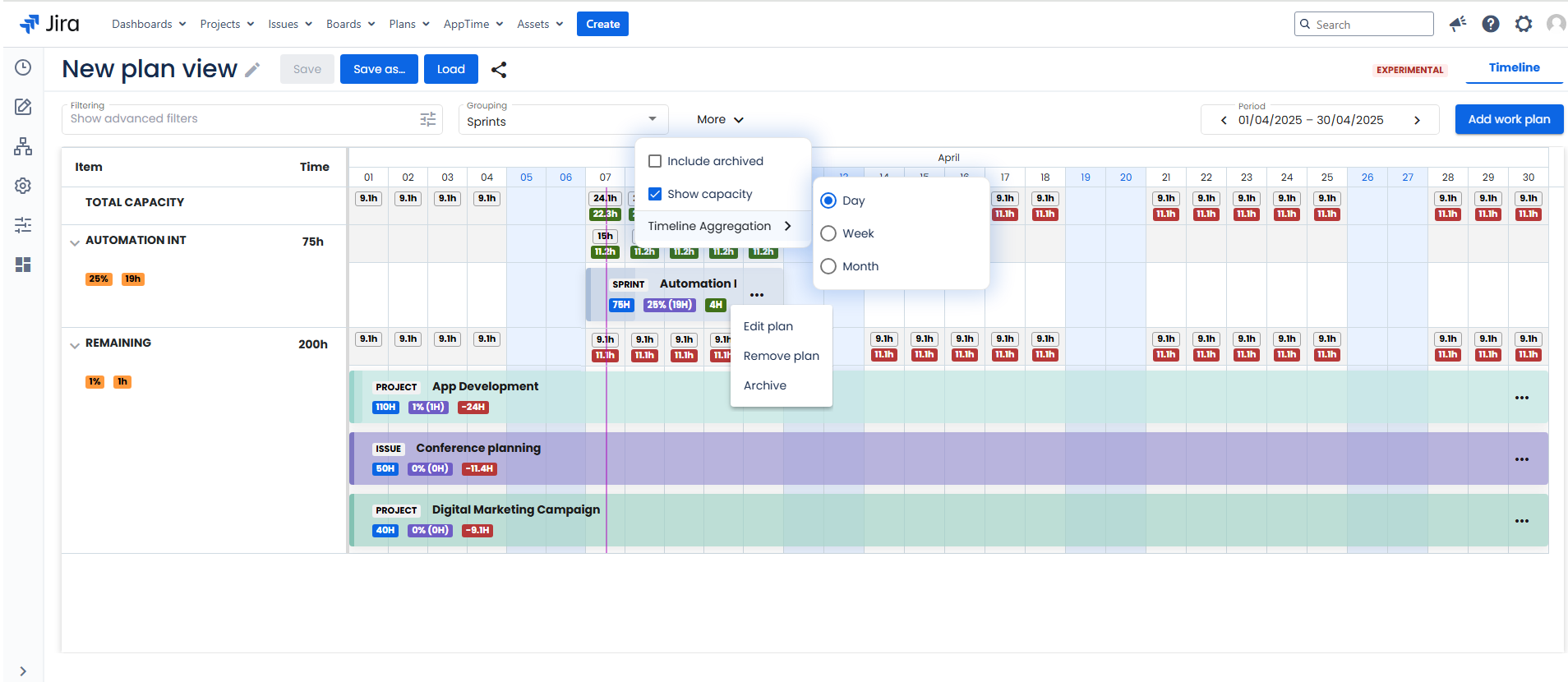
Click on More drop-down button for extra display configuration: Include archived plans to the view, Show capacity, or change Timeline Aggregation (Day, Week, Month).
Filtering & Grouping
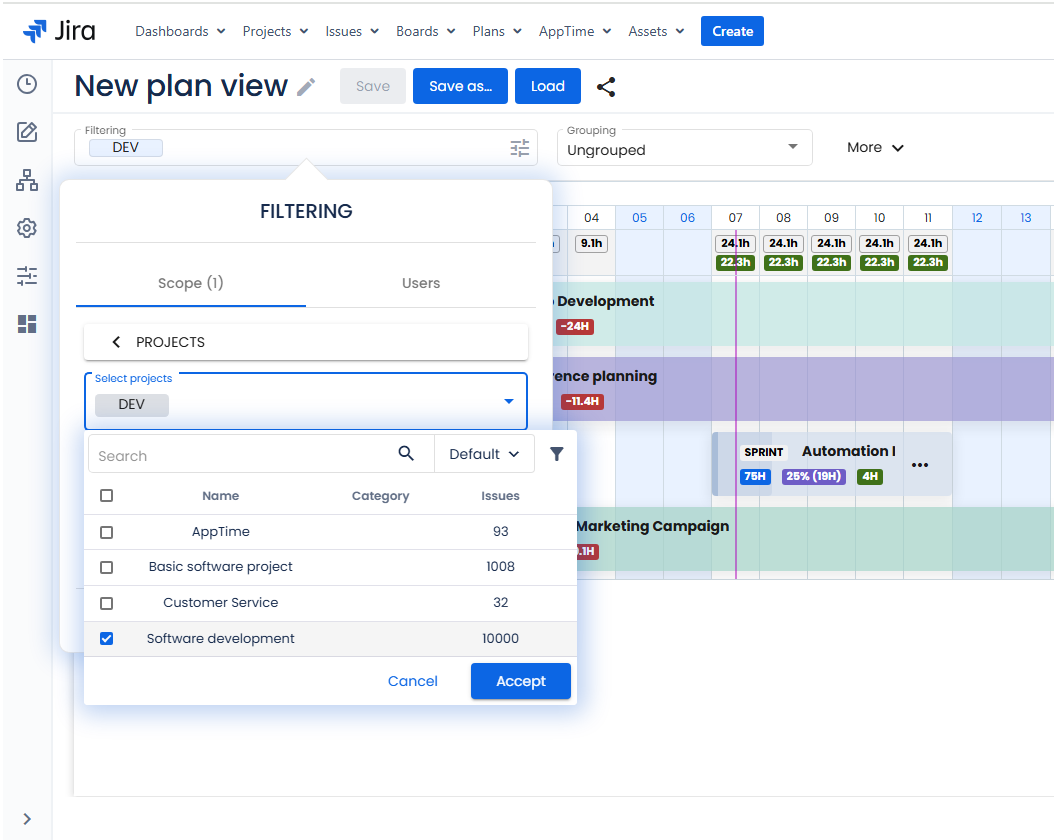
Work Plans can be filtered by:
Scope - Projects, Issues, Sprints, Epics and Ogranizations.
Users - filter by Users and User groups.
Filtered Work Plans can be further grouped by Scope (Projects, Issues, Sprints, Epics and Ogranizations) and Users in the Plans view grid
Edit a Work Plan
- Navigate to the top panel menu → Apptime → Work Plans.
- Locate the Plan you wish to modify and click on the three horizontal dots → Edit plan.
- Make necessary adjustments → Save work plan.
Archive a Work Plan
- Navigate to the top panel menu → Apptime → Work Plans.
- Locate the Plan you wish to archive and click on three horizontal dots → Archive → Confirm.
Remove a Work Plan
- Navigate to the top panel menu → Apptime → Work Plans.
- Locate the Plan you wish to delete and click on the three horizontal dots → Remove plan → Confirm.