This feature was introduced in v.4.3.0 to allow including the secure field's change log in Jira email notifications.
By default, editing a secure field does not trigger the "Issue Updated" event. Such behaviour was implemented for security reasons.
This manual will guide you through setting an event to be thrown on a secure field change allowing privileged users to get email notification about the update.
Firing of the event has to be configured for each secure field separately.
Click to read more about Jira events...
Setting an event for the secure field
To set up an event to be thrown when the secure field's value is edited:
Log in as a user with the 'Jira Administrators' global permission.
Navigate to Admin menu → Issues → Custom fields and locate the needed secure field.
- Click on three horizontal dots in the Actions section → Configure contexts.
- Click "Edit Permissions scheme".
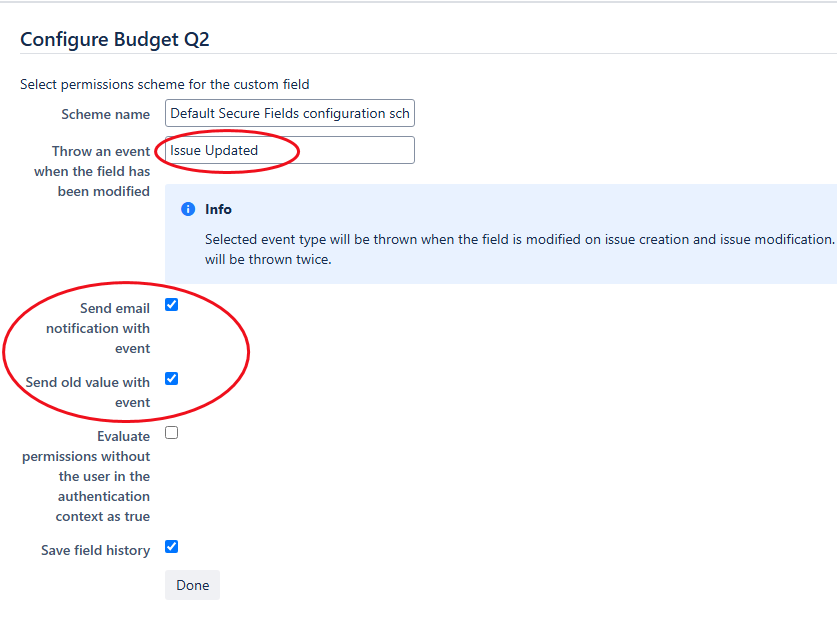
- In "Throw an event when the field has been modified" field select the desired event from the drop down list e.g. "Issue Updated."
- After the event is set, two additional checkboxes appear on the screen:
- Send email notification with event - check this box to send the email notification when this field's value is modified.
- Send old value with event - check this box to include the old value of the secure field (value of the secure field before the editing was done) into the email.
- Click "Done" to confirm the changes.
After configuration is saved, privileged users (users who have permission to view a secure field) will receive an email notification about the secure value change.
If the changes were made for multiple fields, including Jira custom fields, users without permission to view secure fields values will receive an email containing a change log for Jira custom fields only; a secure fields log won't be sent to such users.